> ## Documentation Index
> Fetch the complete documentation index at: https://docs.aichanakya.in/llms.txt
> Use this file to discover all available pages before exploring further.
# Accessing Exercises
> Find an assigned test or exercise, verify availability and instructions, and start the correct attempt.
# Access a test or exercise
1. Open the assessment or exercise list from the main navigation.
2. Locate the item by title, subject, or status.
3. Confirm the start time and deadline.
4. Open the item and read all instructions.
5. Select the available start or continue action.
## Read the Tests list
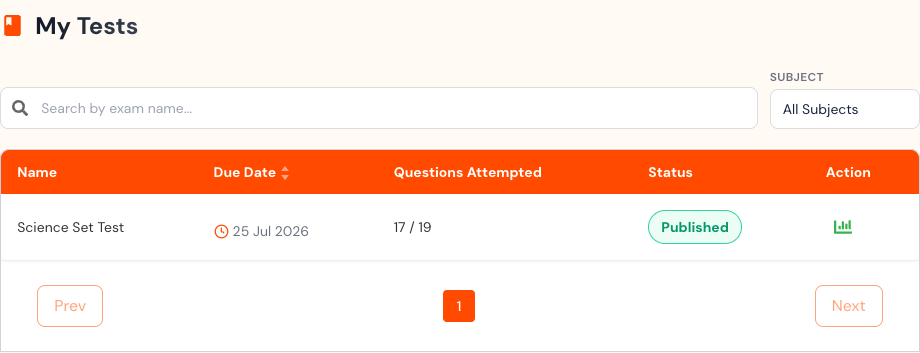
The Tests list includes search, a subject filter, due date, questions attempted, status, and the available action. A published assessment shows **View analysis**.
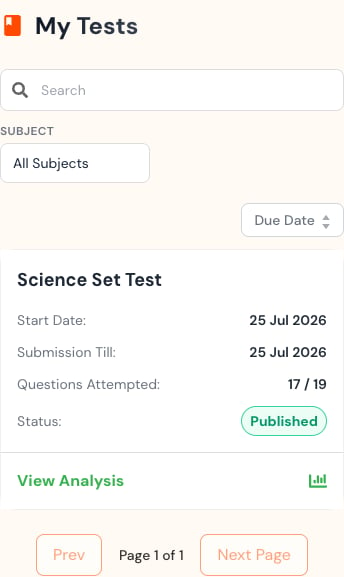
 On a phone, each assessment becomes a card rather than a table.
 ## Read the Homework list
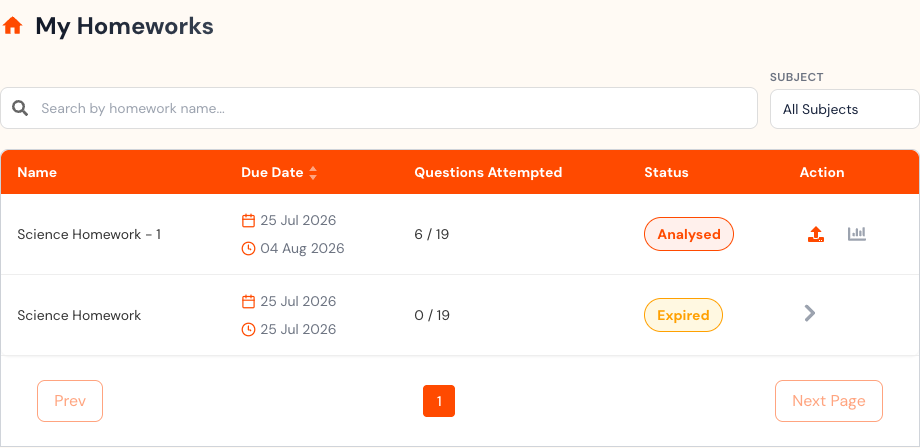
Homework shows both start and due dates, attempted-question count, processing status, and available actions. **Re-upload answer sheet** appears only when another upload is allowed. A disabled **View analysis** button means the result is not currently available to open.
## Read the Homework list
Homework shows both start and due dates, attempted-question count, processing status, and available actions. **Re-upload answer sheet** appears only when another upload is allowed. A disabled **View analysis** button means the result is not currently available to open.
 ## Scheduled exams
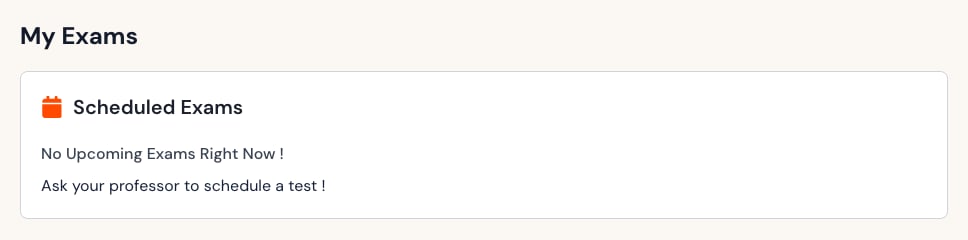
Some organizations also use a separate scheduled-exam area. If no exam is scheduled, the page shows an empty state instead of a start action.
## Scheduled exams
Some organizations also use a separate scheduled-exam area. If no exam is scheduled, the page shows an empty state instead of a start action.
 ## Understand the action shown
| Action or state | What it usually means |
| --------------- | ------------------------------------------------------------------------------------------------------ |
| **Start** | The activity is available and you have not started it. |
| **Continue** | An attempt is already in progress. |
| **Submitted** | Your final submission was recorded. |
| **View result** | A graded result has been published. |
| **Analysed** | Processing has reached analysis, but visibility still depends on publication and the available action. |
| **Expired** | The deadline passed without an available attempt. |
| No action | The activity may be early, late, disabled, or waiting for another stage. |
## Before starting
* Charge your device or connect it to power.
* Use a reliable internet connection.
* Close unrelated tabs and apps.
* Keep paper, a pen, or image-upload materials ready when required.
* Allow enough uninterrupted time before the deadline.
## If you cannot start
The item may be outside its availability window, already submitted, disabled by your organization, or blocked by subscription state. Refresh once, then contact your teacher if the expected action still does not appear.
When asking for help, include the activity title, subject, expected start time, and the message or state you see. Do not include your password.
Do not open multiple copies of the same active attempt in different tabs or devices. Keep one attempt open to reduce the risk of conflicting progress.
## Related topics
- [Exercise Management](/student-guide/exercise-management/overview.md)
- [Exercise Results](/student-guide/performance-analysis/exercise-results.md)
- [Class Analysis](/teacher-guide/exercise-management/exercise-analytics.md)
- [Student Guide](/student-guide/overview.md)
## Understand the action shown
| Action or state | What it usually means |
| --------------- | ------------------------------------------------------------------------------------------------------ |
| **Start** | The activity is available and you have not started it. |
| **Continue** | An attempt is already in progress. |
| **Submitted** | Your final submission was recorded. |
| **View result** | A graded result has been published. |
| **Analysed** | Processing has reached analysis, but visibility still depends on publication and the available action. |
| **Expired** | The deadline passed without an available attempt. |
| No action | The activity may be early, late, disabled, or waiting for another stage. |
## Before starting
* Charge your device or connect it to power.
* Use a reliable internet connection.
* Close unrelated tabs and apps.
* Keep paper, a pen, or image-upload materials ready when required.
* Allow enough uninterrupted time before the deadline.
## If you cannot start
The item may be outside its availability window, already submitted, disabled by your organization, or blocked by subscription state. Refresh once, then contact your teacher if the expected action still does not appear.
When asking for help, include the activity title, subject, expected start time, and the message or state you see. Do not include your password.
Do not open multiple copies of the same active attempt in different tabs or devices. Keep one attempt open to reduce the risk of conflicting progress.
## Related topics
- [Exercise Management](/student-guide/exercise-management/overview.md)
- [Exercise Results](/student-guide/performance-analysis/exercise-results.md)
- [Class Analysis](/teacher-guide/exercise-management/exercise-analytics.md)
- [Student Guide](/student-guide/overview.md)