> ## Documentation Index
> Fetch the complete documentation index at: https://docs.aichanakya.in/llms.txt
> Use this file to discover all available pages before exploring further.
# Submitting Answers
> Enter responses, attach readable handwritten work, review completion, and make a safe final submission.
# Submit your answers
Use the question navigation to move through the paper. The interface may support typed responses, selected choices, or uploaded handwritten work depending on the question.
 ## Review the paper
The paper header shows the assessment title, class, subject, time, and maximum marks. Read the general instructions and the required-attempt count for every section.
## Review the paper
The paper header shows the assessment title, class, subject, time, and maximum marks. Read the general instructions and the required-attempt count for every section.

 Questions can contain text, images, choices, sub-questions, or longer written responses. Check the marks and required attempts before deciding how much time to spend.
 ## Save work as you go
Move between questions using the controls in the paper. When the app shows saved or completion indicators, use them to identify unfinished work. Avoid refreshing during an upload or final submission.
## Upload handwritten work
* Use bright, even lighting.
* Keep the entire answer inside the image.
* Avoid blur, shadows, and rotated pages.
* Upload pages in the intended order.
* Reopen the preview to confirm the image is readable.
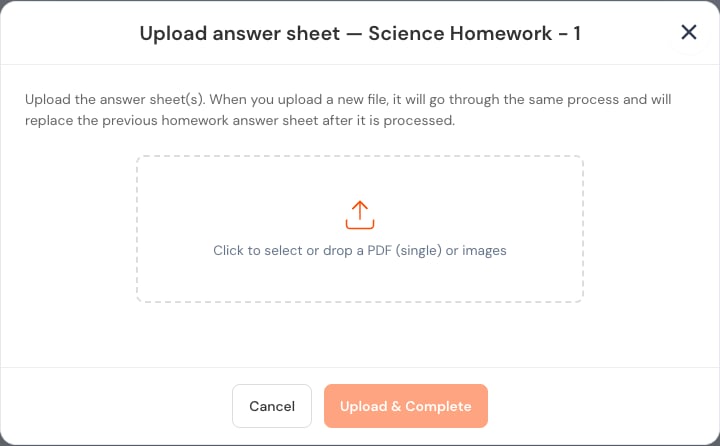
* Use the file type requested by the dialog. A test can request a single PDF; homework can allow one PDF or multiple images.
## Save work as you go
Move between questions using the controls in the paper. When the app shows saved or completion indicators, use them to identify unfinished work. Avoid refreshing during an upload or final submission.
## Upload handwritten work
* Use bright, even lighting.
* Keep the entire answer inside the image.
* Avoid blur, shadows, and rotated pages.
* Upload pages in the intended order.
* Reopen the preview to confirm the image is readable.
* Use the file type requested by the dialog. A test can request a single PDF; homework can allow one PDF or multiple images.
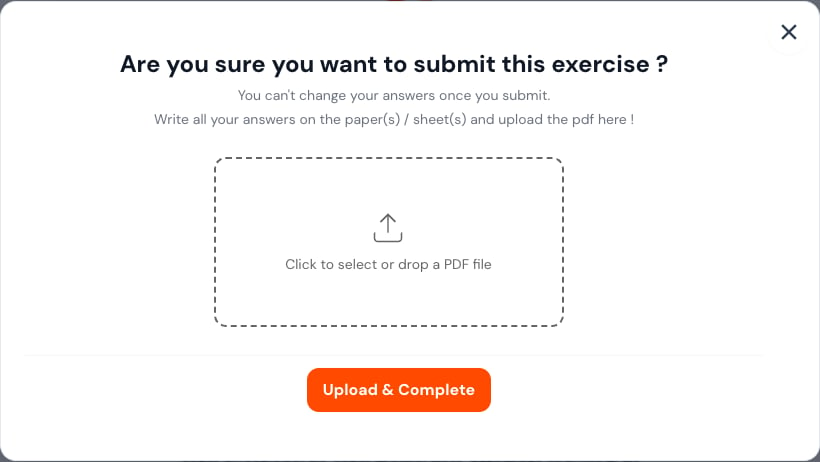 For homework, an allowed re-upload replaces the previous answer sheet only after the new file is processed.
 ## Final review
Before selecting the final submit action:
1. Visit every question.
2. Check that required responses are present.
3. Verify selected options.
4. Open each uploaded image.
5. Confirm the deadline has not passed.
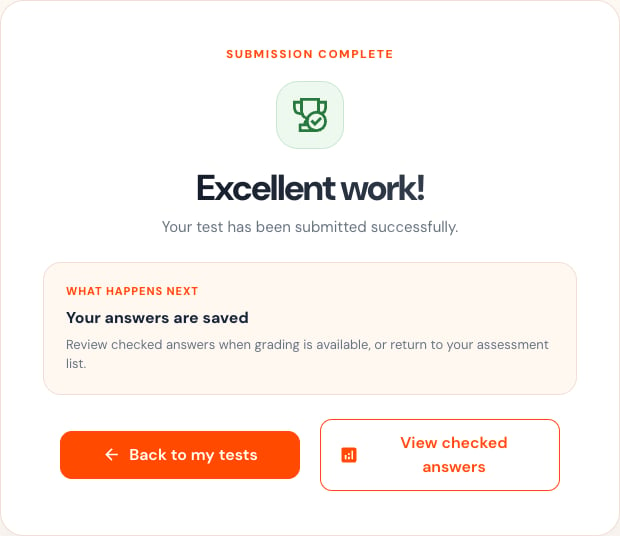
6. Submit once and wait for the confirmation screen.
## After submission
Confirm that the activity shows a submitted or completed state. A result may not appear immediately because grading, teacher review, or publication can happen later.
## Final review
Before selecting the final submit action:
1. Visit every question.
2. Check that required responses are present.
3. Verify selected options.
4. Open each uploaded image.
5. Confirm the deadline has not passed.
6. Submit once and wait for the confirmation screen.
## After submission
Confirm that the activity shows a submitted or completed state. A result may not appear immediately because grading, teacher review, or publication can happen later.
 If the page stops responding during final submission:
1. Keep the tab open.
2. Wait briefly for the confirmation.
3. Check your connection.
4. Open the activity list in a separate step only after the request finishes.
5. Contact your teacher if the status remains uncertain.
Do not close the page immediately after submitting. Wait until Chanakya AI confirms that the attempt has ended or the submission status has changed.
## Related topics
- [Teacher First Steps](/getting-started/teacher-registration-workflow.md)
- [Content Creation](/teacher-guide/content-creation/overview.md)
- [Export Options](/teacher-guide/content-creation/export-options.md)
- [Student First Steps](/getting-started/student-onboarding-workflow.md)
- [Preview & Validation](/teacher-guide/content-creation/preview-and-validation.md)
If the page stops responding during final submission:
1. Keep the tab open.
2. Wait briefly for the confirmation.
3. Check your connection.
4. Open the activity list in a separate step only after the request finishes.
5. Contact your teacher if the status remains uncertain.
Do not close the page immediately after submitting. Wait until Chanakya AI confirms that the attempt has ended or the submission status has changed.
## Related topics
- [Teacher First Steps](/getting-started/teacher-registration-workflow.md)
- [Content Creation](/teacher-guide/content-creation/overview.md)
- [Export Options](/teacher-guide/content-creation/export-options.md)
- [Student First Steps](/getting-started/student-onboarding-workflow.md)
- [Preview & Validation](/teacher-guide/content-creation/preview-and-validation.md)