> ## Documentation Index
> Fetch the complete documentation index at: https://docs.aichanakya.in/llms.txt
> Use this file to discover all available pages before exploring further.
# Creating Tests
> Create a test from curriculum settings or upload an existing paper.
# Create a test
Open **Tests**, select **New Test**, and choose a mode.
## Create Test mode
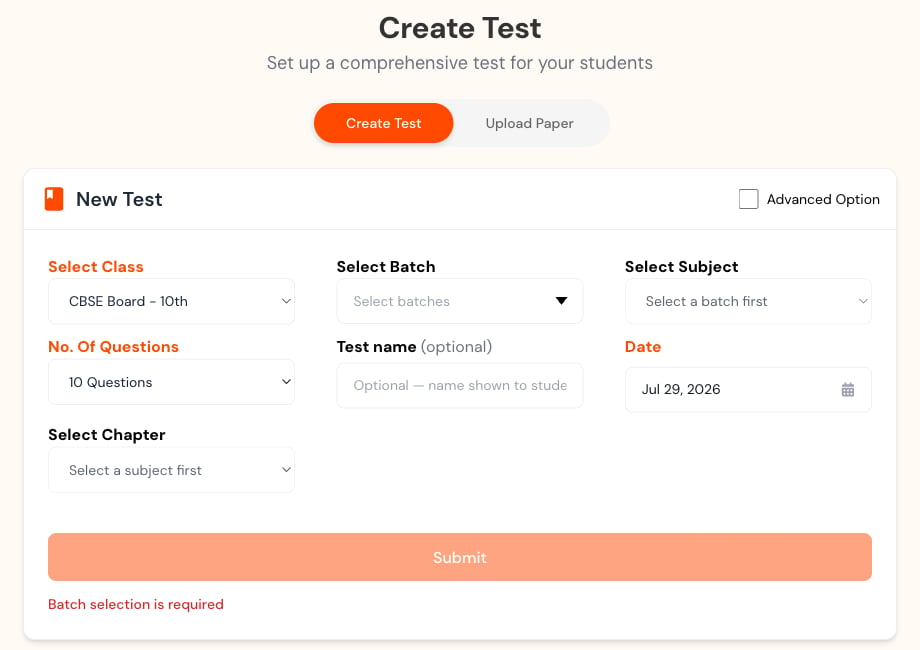 Select class, section, and subject. Later fields can remain unavailable until the earlier selection is complete.
Choose the number of questions, optional display name, date, and chapters.
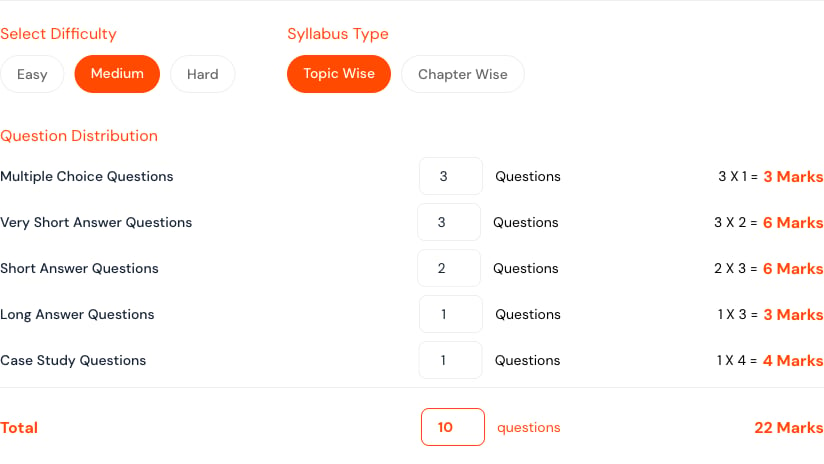
Set difficulty, syllabus scope, and question-type distribution when the default mix is not suitable.
Submit the request once. Generation can take time; monitor its status in the Tests list.
Select class, section, and subject. Later fields can remain unavailable until the earlier selection is complete.
Choose the number of questions, optional display name, date, and chapters.
Set difficulty, syllabus scope, and question-type distribution when the default mix is not suitable.
Submit the request once. Generation can take time; monitor its status in the Tests list.
 ## Upload Paper mode
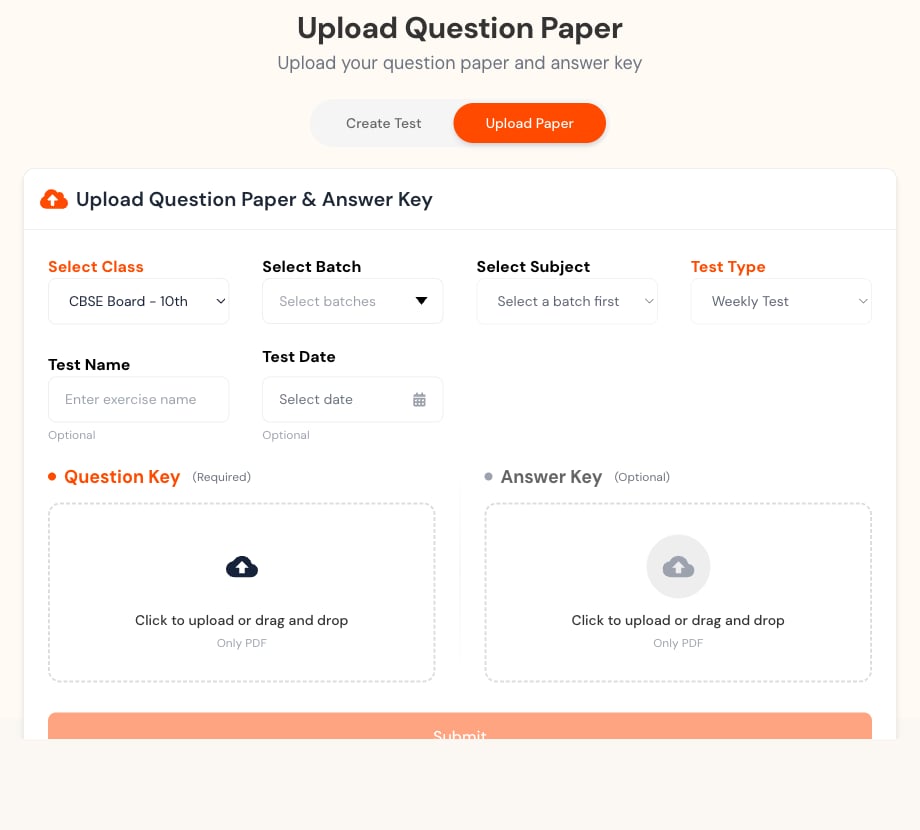 * Upload the **Question Key** as a PDF.
* Add an **Answer Key** when available; verify extracted answers before grading.
* Use a clear scan with readable text, upright pages, and complete diagrams.
* Do not upload a learner’s answered paper as the master question key.
Creating or uploading does not replace review. Extraction and generation can misread notation, diagrams, options, or marks.
## Related topics
- [Content Creation](/teacher-guide/content-creation/overview.md)
- [Teacher First Steps](/getting-started/teacher-registration-workflow.md)
- [Administrator Guide](/admin-guide/overview.md)
- [Viewing Assigned Batches](/teacher-guide/batch-management/viewing-assigned-batches.md)
- [User Management](/admin-guide/user-management.md)
* Upload the **Question Key** as a PDF.
* Add an **Answer Key** when available; verify extracted answers before grading.
* Use a clear scan with readable text, upright pages, and complete diagrams.
* Do not upload a learner’s answered paper as the master question key.
Creating or uploading does not replace review. Extraction and generation can misread notation, diagrams, options, or marks.
## Related topics
- [Content Creation](/teacher-guide/content-creation/overview.md)
- [Teacher First Steps](/getting-started/teacher-registration-workflow.md)
- [Administrator Guide](/admin-guide/overview.md)
- [Viewing Assigned Batches](/teacher-guide/batch-management/viewing-assigned-batches.md)
- [User Management](/admin-guide/user-management.md)