> ## Documentation Index
> Fetch the complete documentation index at: https://docs.aichanakya.in/llms.txt
> Use this file to discover all available pages before exploring further.
# Preview & Validation
> Review assessment metadata, questions, answers, marks, and exports before release.
# Preview and validate
From the Tests list, select **Preview**.

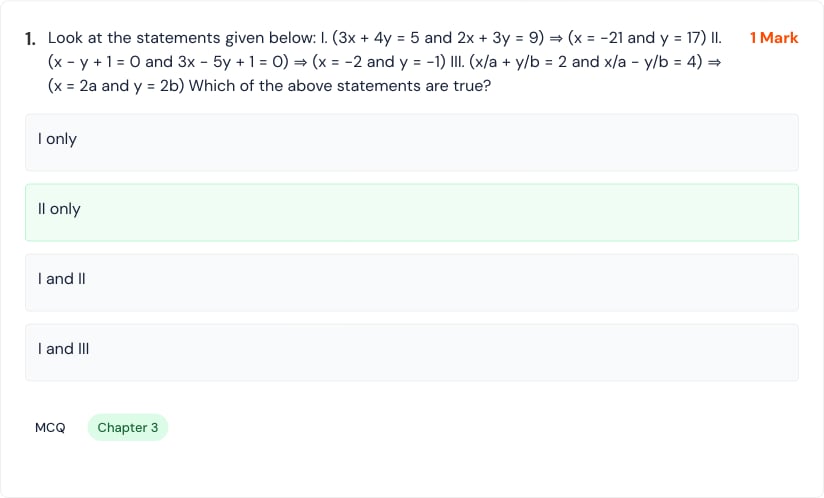
 First confirm that the summary matches the intended assessment. Then inspect every section and question.
 Check:
* section labels, total marks, and required attempts;
* question text, mathematical notation, diagrams, and ordering;
* option completeness and the correct option;
* question type, chapter, difficulty, and marks;
* answer-key explanations for factual or calculation errors.
## Preview options
Check:
* section labels, total marks, and required attempts;
* question text, mathematical notation, diagrams, and ordering;
* option completeness and the correct option;
* question type, chapter, difficulty, and marks;
* answer-key explanations for factual or calculation errors.
## Preview options
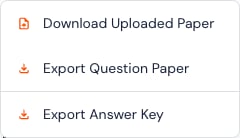 The available options can include the uploaded source, question-paper export, and answer-key export. Store answer keys separately and share them only with authorized staff.
Preview is the teacher’s quality gate. If anything is unclear or incorrect, edit or regenerate before learners start.
## Related topics
- [Content Creation](/teacher-guide/content-creation/overview.md)
- [Export Options](/teacher-guide/content-creation/export-options.md)
- [Question Review](/student-guide/performance-analysis/question-review.md)
- [Homework Management](/teacher-guide/exercise-management/homework-management.md)
- [Teacher First Steps](/getting-started/teacher-registration-workflow.md)
The available options can include the uploaded source, question-paper export, and answer-key export. Store answer keys separately and share them only with authorized staff.
Preview is the teacher’s quality gate. If anything is unclear or incorrect, edit or regenerate before learners start.
## Related topics
- [Content Creation](/teacher-guide/content-creation/overview.md)
- [Export Options](/teacher-guide/content-creation/export-options.md)
- [Question Review](/student-guide/performance-analysis/question-review.md)
- [Homework Management](/teacher-guide/exercise-management/homework-management.md)
- [Teacher First Steps](/getting-started/teacher-registration-workflow.md)