
Administrator first steps
Administrator actions can change other people’s access. First check the school and plan shown on the dashboard, then make only the change you need.
Sign in
Open the Chanakya AI portal and enter the Admin User Id and password given by your school. Everyone uses the same sign-in page; your role decides which area opens.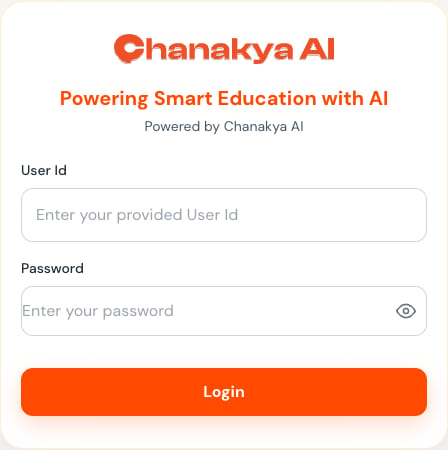
1. Review the dashboard
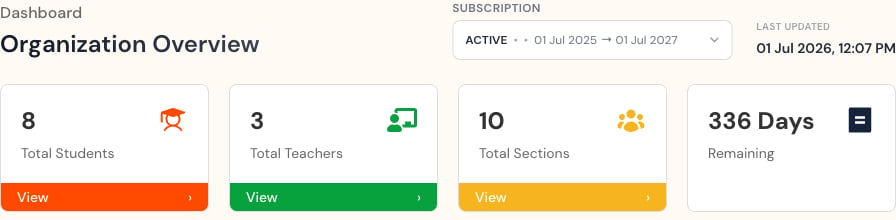
Check:- Total students, teachers, and sections.
- The selected plan.
- Used and available accounts.
- Renewal or expiry information.
- Any warning that needs attention.
2. Search before creating
Use Students or Teachers to search by the person’s User Id and name. Make sure they do not already have an account. Duplicate accounts can split a person’s history, use an extra account space, and cause class-assignment problems.3. Verify identity before changing access
Before editing, resetting a password, or removing an account, confirm:- The User Id.
- The school.
- The class and subject.
- The intended section.
- Whether active work depends on the account.
4. Maintain sections
Sections connect students and teachers to the right classes and work. After changing membership, check the list and ask the person to sign out and back in. Before deleting a section, check for active tests, homework, and historical reporting that may depend on it.5. Review activity
Use Activity Logs to check a recent change. Search by time and account, then compare the log with what you see now.Mobile navigation
On a phone, select the menu button at the top to open Dashboard, Tests, Homework, Students, Teachers, Sections, and Help.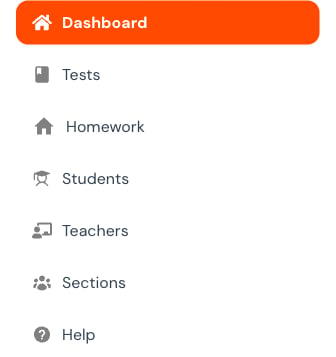
What to read next
Administrator guide
Understand the complete administrator responsibility map.
User management
Create, update, reset, and remove accounts safely.
Sections and activity
Maintain membership and investigate changes.
Assessment oversight
Review status, recover deleted assessments, and protect against permanent deletion.
License management
Interpret fixed and unlimited capacity.