
Student guide
Your Student area brings today’s work, upcoming deadlines, results, and study help into one place.
1
Check today
Start on the dashboard. Review upcoming tests, homework, and the suggested study block.
2
Open assigned work
Use the main navigation to open tests or homework. Read the instructions and deadline before starting.
3
Complete and review
Answer each question, attach clear handwritten work when requested, and review every response before final submission.
4
Learn from the result
When your teacher shares the result, open it to review marks, feedback, strengths, and what to practise.
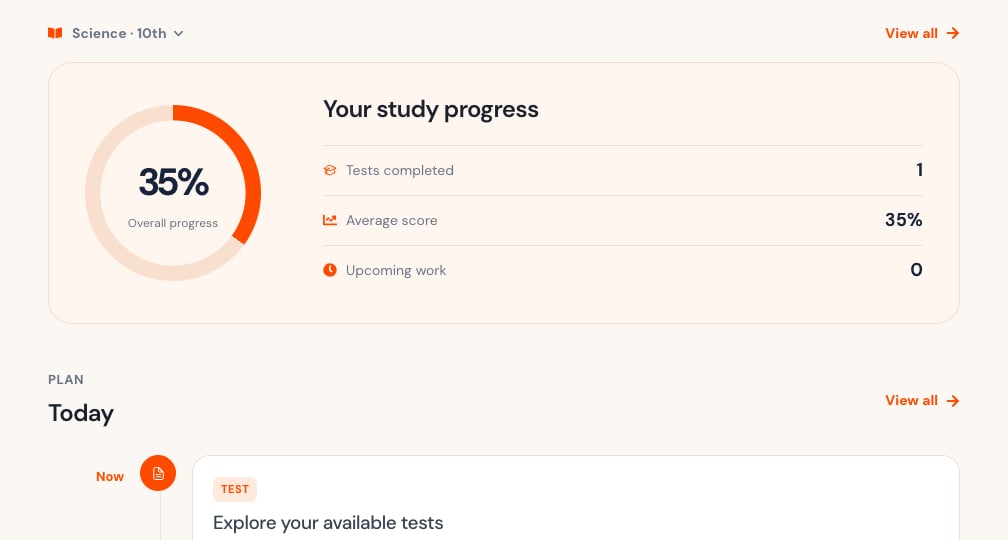
Dashboard at a glance
- Subject chooses the class and subject shown on the dashboard.
- Overall progress shows your available results for that selection.
- Tests completed shows finished tests.
- Average score provides a quick performance indicator.
- Upcoming work combines pending tests and homework.
- Today prioritizes the next test, homework item, and a suggested study step.
Navigation and availability
Use Dashboard, Tests, Homework, and Help in the main navigation. On a phone, the same destinations appear in the bottom navigation and the menu button opens account options. Your school decides which features you can use. The tests, homework, exams, tools, and resources you see can depend on your class and account.What happens after submission
After you submit, your teacher may need to review or re-check the work. You can see the result after your teacher shares it.
Good assessment habits
- Read instructions before starting.
- Keep one attempt open on one device.
- Check every answer and attachment.
- Wait for a successful submission confirmation.
- Ask your teacher about a result only after noting the assessment title and the exact problem.
- Use feedback to choose a focused next action.
Dashboard
Understand progress, upcoming work, and study priorities.
Access exercises
Find work, check its status, and start safely.
Submit answers
Review text and uploaded work before submission.
Review results
Read scores, feedback, and next actions.
Resources and tools
Find class material and use image-to-text tools when enabled.
Account security
Change your password and sign out safely.