
Manage sections
Open Sections to filter by class and section, review roster totals, create a new section, or open row actions.


Create a section
Select Create New Section. Choose the board first, then the class. Enter a clear section name. The selected class determines available Students and subjects.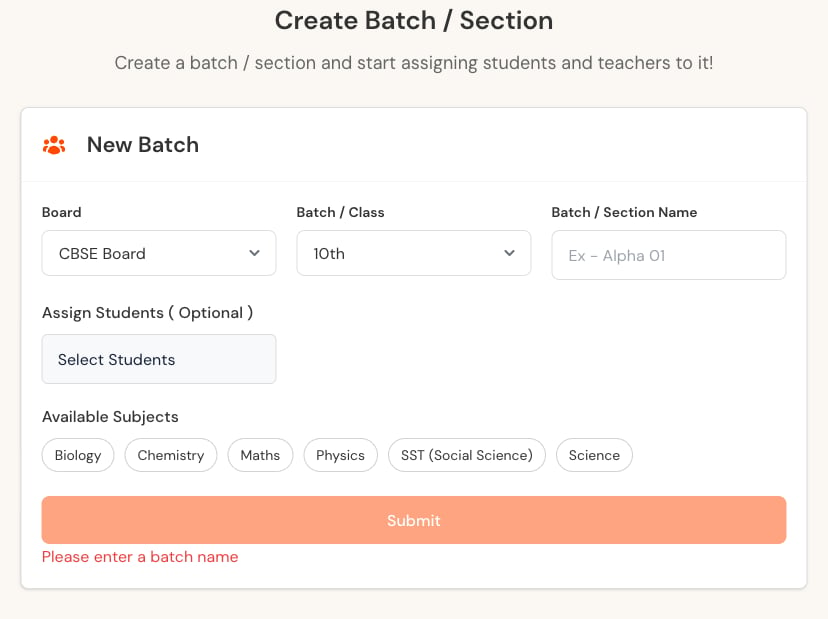
Verify after saving
- Reopen the section.
- Confirm board, class, and section name.
- Check Student membership.
- Check Teacher and subject relationships.
- Ask affected users to sign out and back in.
- Confirm expected tests and homework remain visible.
Row actions
- View Students opens the roster.
- Edit changes the section details.
- Delete removes the section only after confirmation.