Manage Student accounts
Open Students to review learner accounts. The page provides Add Student and Export actions.

Find the correct learner
Search by name, roll number, mobile number, or username. Use the class filter first; the section filter becomes available after a class is selected.


The list separates name, roll number, board, class, mobile number, username, and actions.
Use the unique roll number or username with the class and section context. Names alone are not sufficient.
Add a Student
Select Add Student, then enter:
- Student name.
- Roll number.
- Board.
- Class.
- Optional batch or section enrollment.
- Optional phone number.
- Optional email address.
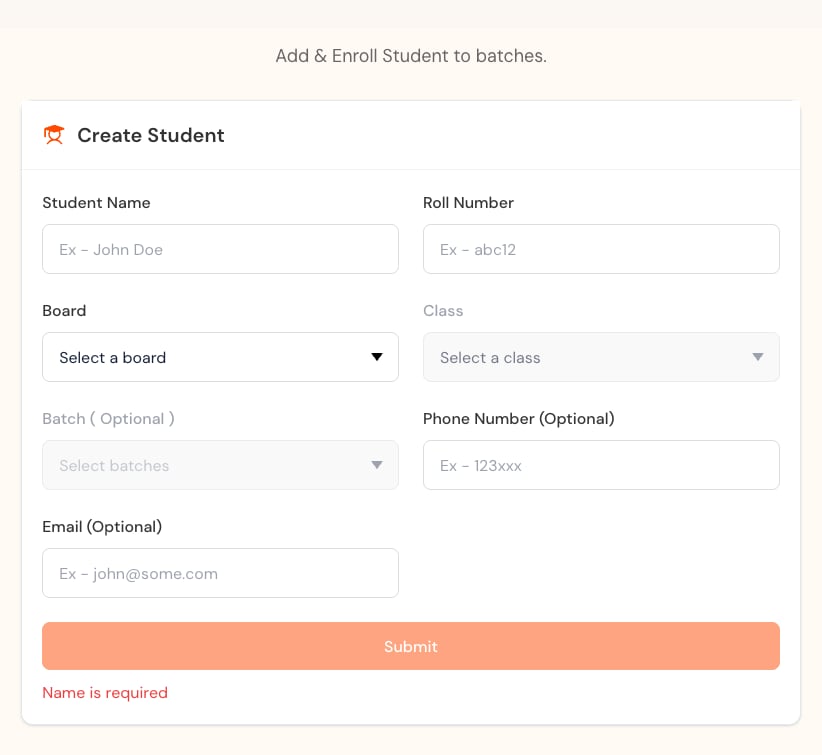
Board must be selected before class. Class determines which batches can be selected. Submit only after reviewing the complete form.
Edit or reset access
From the actions column:
- Use Edit to correct details or enrollment.
- Use Reset password only after verifying the learner.
- Use Delete only after checking active submissions, results, section dependencies, and policy.
After an enrollment change, ask the learner to sign out and back in. Confirm that the expected tests and homework appear.
Export safely
An exported user report can contain personal information. Store it only in an approved location, share it with authorized people, and remove unnecessary local copies when policy requires.
Do not use a public screenshot of the Student table. Usernames, roll numbers, contact information, and section membership are personal data.