Manage Teacher accounts
Open Teachers to review teaching accounts. The page provides Add Teacher and Export actions.

Search and filter
Search by name, mobile number, or email. Use the section filter to narrow the list when a teacher has several assignments.


The list separates the teacher’s name, assigned class and subject context, mobile or username, email, and actions.
Add a Teacher
Select Add Teacher and enter the required name and phone number. Email is optional.
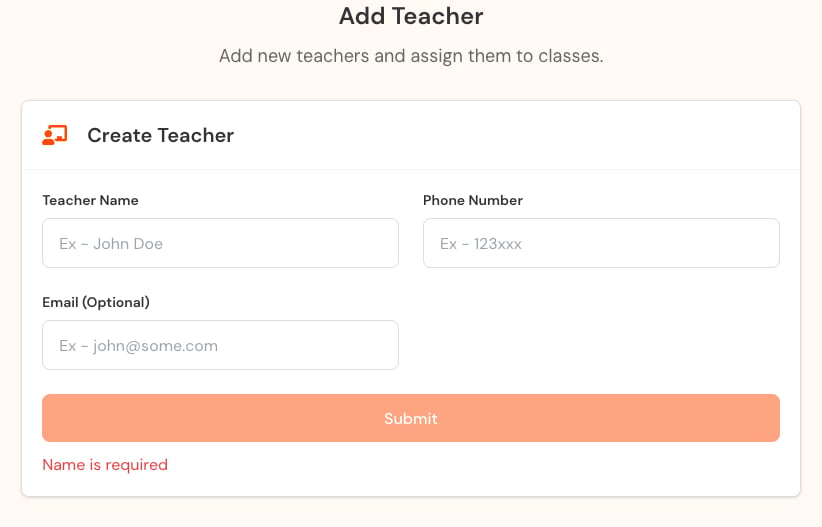
Creating the account and assigning teaching context are separate responsibilities. After creation, verify the intended sections and subjects before asking the teacher to begin work.
Assignment checklist
- Confirm the correct board and class.
- Confirm every intended section.
- Assign only the subjects the teacher owns.
- Remove stale assignments when responsibility changes.
- Ask the teacher to sign out and back in.
- Confirm the expected Tests, Homework, and Sections navigation.
Edit, reset, or remove
Use the actions column to edit, reset a password, or delete. Verify the account using the approved identity process before a reset. Before removal, check owned assessments, pending grading, section relationships, and reporting requirements.
Removing a Teacher account can affect access to assessment workflows. Reassign responsibility before removal when active work still depends on that teacher.