Class analysis

Select Class analysis on an eligible graded or published assessment. Class performance header with Reanalyze, Export report, and Overview, Questions, and Students tabs.
  • Reanalyze refreshes generated insights from the available results. Use it after the underlying data changes.
  • Export report downloads the analysis for authorized use.
  • Switch among Overview, Questions, and Students without leaving the assessment.
Teacher decision loop from overview scan through question verification, learner grouping, instructional action, and reassessment.

Overview: read the class story

The overview combines performance, participation, attempt rate, average time, a teacher brief, score distribution, question-type performance, marks-lost categories, key insights, and next-exercise guidance. Use the teacher brief and recommended focus to form a hypothesis, not a final judgment. Check the question evidence next.

Questions: verify the cause

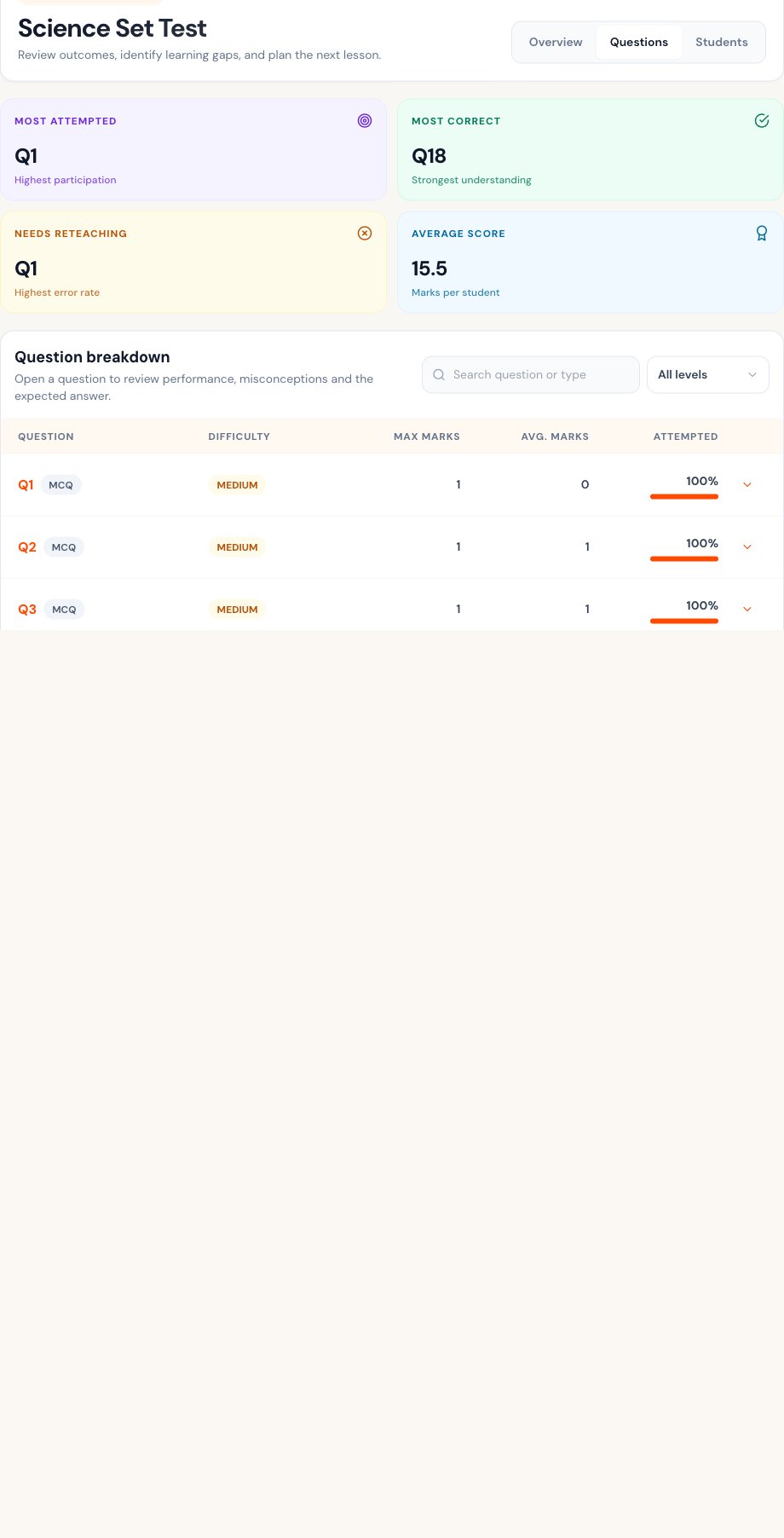
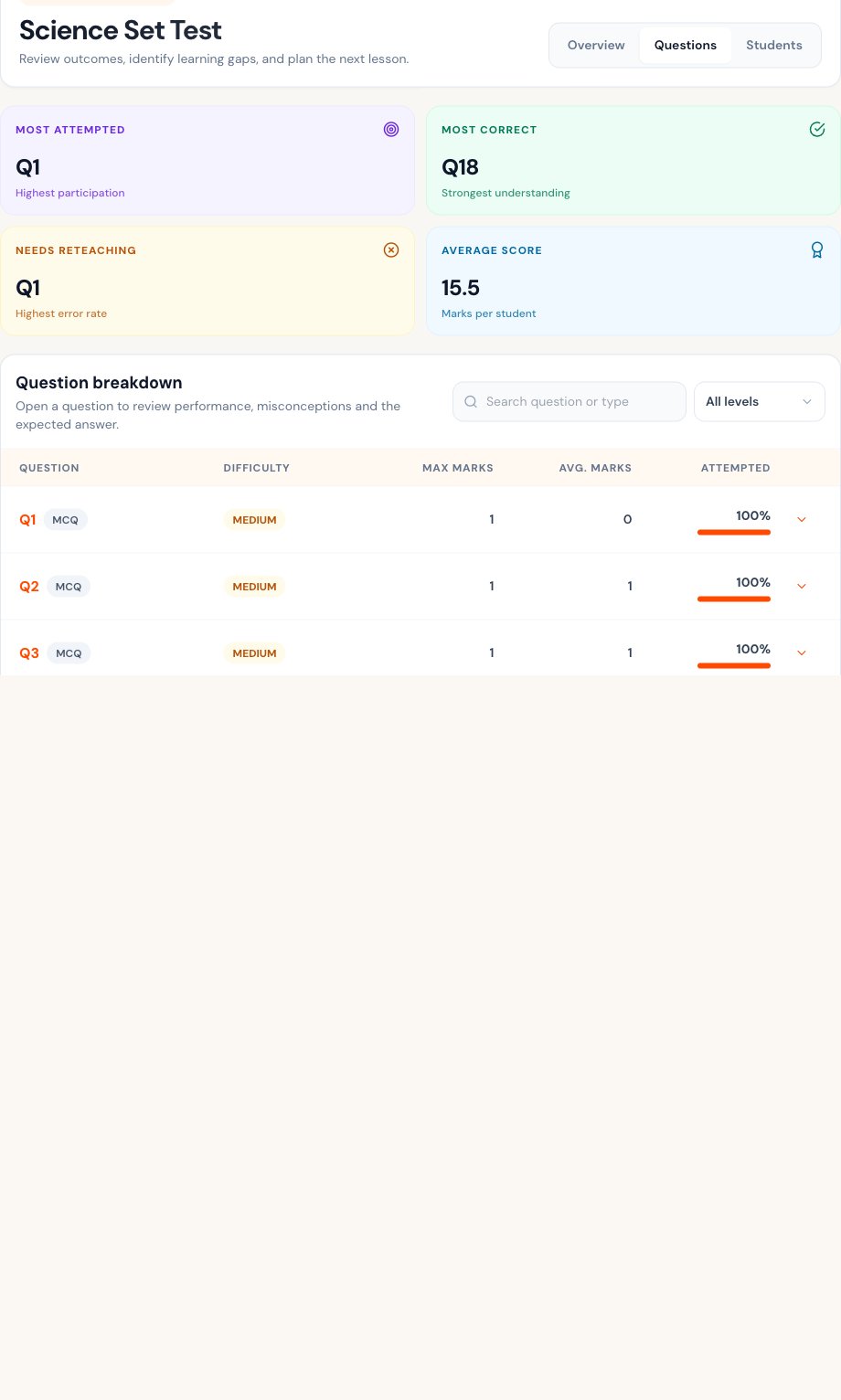
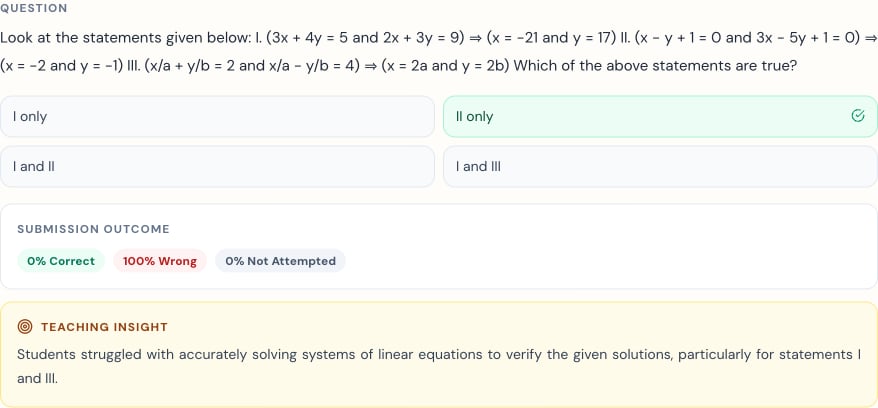
Question performance summary for most attempted, most correct, reteaching need, and average score. Question breakdown with search, difficulty filter, marks, average marks, and attempt rate. Open a question to compare the prompt, expected answer, submission outcome, and teaching insight. Expanded question analysis with correct option, class outcome, and teaching insight.

Students: choose follow-up

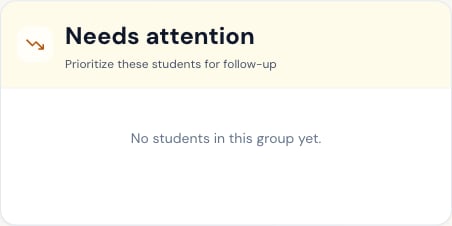
The Students view separates strong performers and learners needing attention, then provides search and performance filters. Needs attention learner group in an empty state. All students analysis controls with search and performance filter. Open individual analysis only when needed. Do not infer a learner’s ability from one score; include the response, attempt pattern, and prior evidence.

Analysis can be unavailable when the assessment ID is incomplete, submissions are not graded, or there is insufficient data. Return to the Tests list and open Class analysis from the correct row.
Last modified on July 29, 2026